.png)
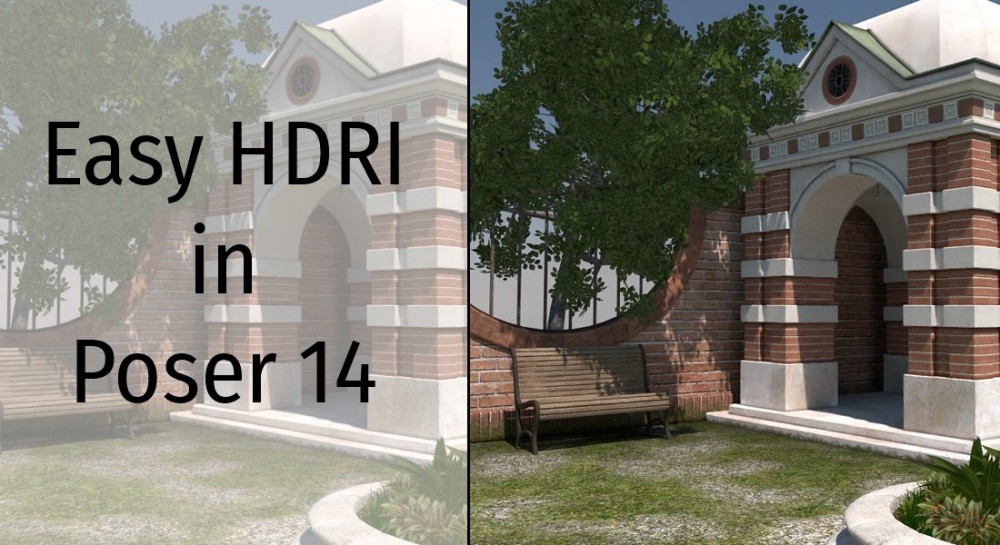
HDRI lighting is one of the most powerful ways to bring realism into your 3D scenes. By capturing the full range of real-world light values, HDRI maps deliver highly realistic illumination, reflections, and shadows.
This makes renders look natural and believable in ways that traditional light setups often struggle to achieve. Instead of manually placing dozens of lights, a single HDRI map can instantly provide complex lighting that saves time while maintaining high realism.
With Poser 14, setting up HDRI environments has become simpler than ever. The new Simple Background tab allows you to quickly load a High Dynamic Range Image (HDRI) as both your background and your lighting source.
This means one properly formatted image can create an immersive environment while simultaneously casting realistic light across your scene.
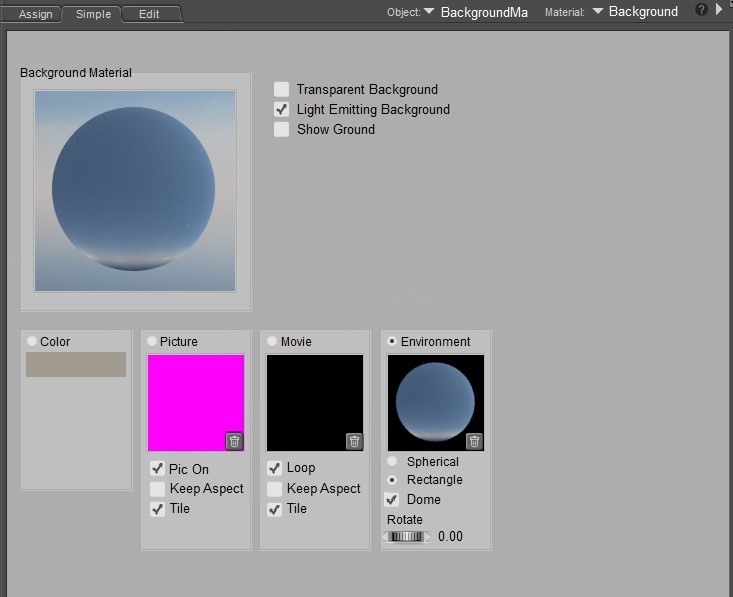
When working with HDRI, it’s important to enable light emission so the image can illuminate your scene.
Next, set the background type to Environment. Once selected, click the Environment tile to open the texture manager. In the texture manager, use the Browse button to locate and select your HDRI file from the file chooser.
Once loaded, your scene will immediately benefit from the realistic lighting and reflections provided by the HDR.
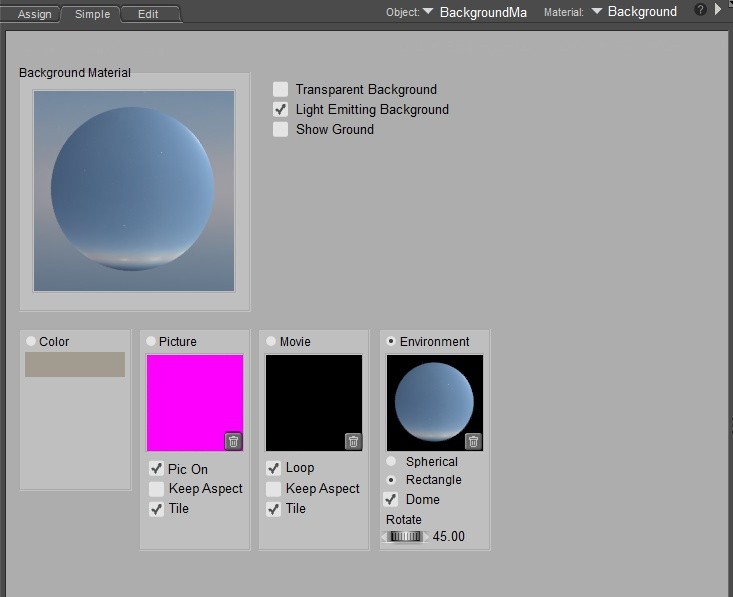
If you want to adjust the direction of the light, Poser 14 makes this easy. Simply rotate the HDRI image using the provided dial.
Small incremental adjustments often work best, allowing you to find that perfect angle where the lighting enhances your composition. With just a few tweaks, you can achieve the sweet spot that brings your render to life.
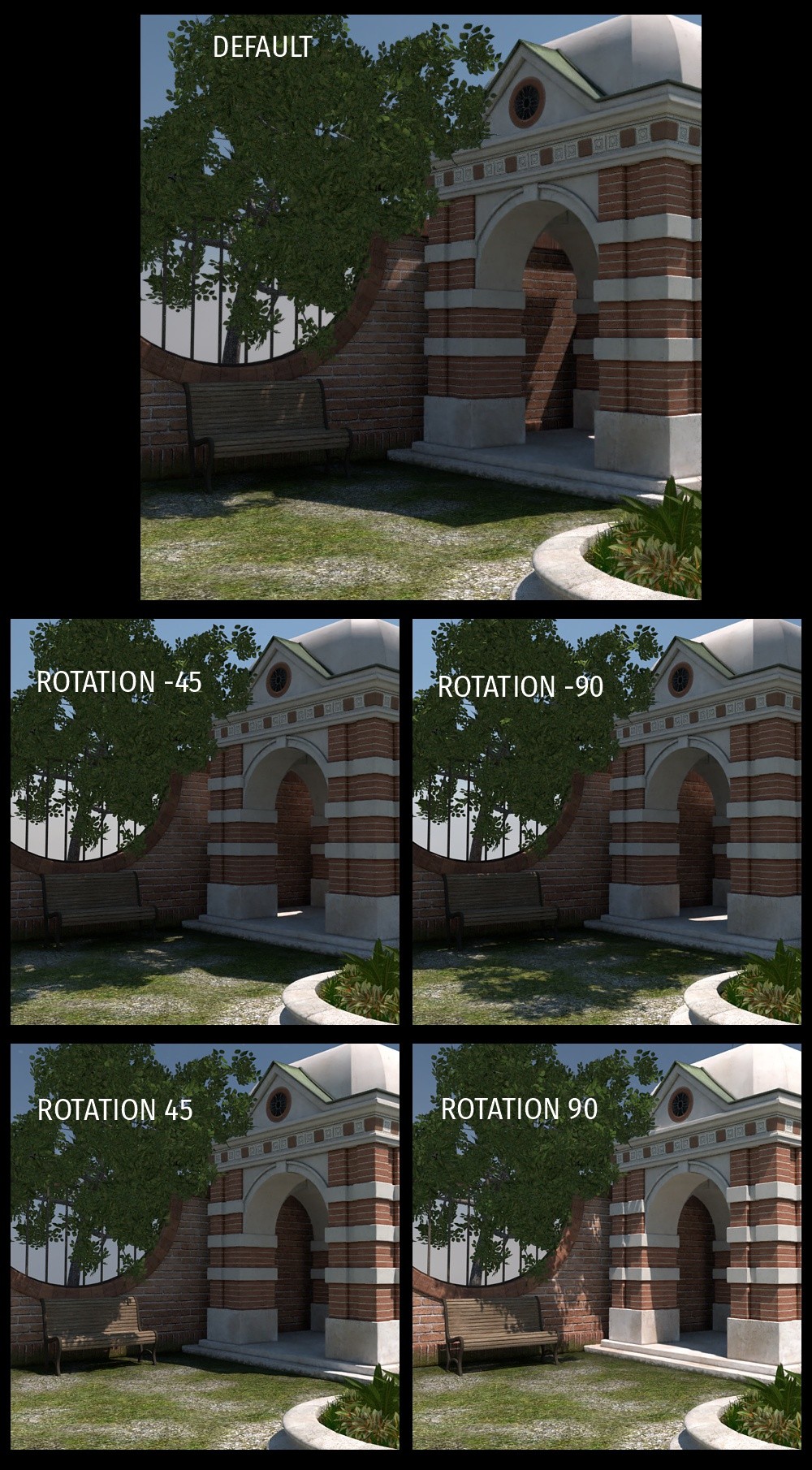
Here are some examples using the same hdri but rotating it to cast light and shadows at different angles.
By combining ease of setup with the natural realism of HDRI, Poser 14 empowers artists to create stunningly lit scenes in minutes. Whether you’re aiming for subtle daylight or dramatic reflections, HDRI environments provide a fast, effective way to elevate your renders.